Tuesday, May 26, 2015

ANDROID : IntentService Example

IntentService is a base class for Service  that handle asynchronous requests on demand. Clients send requests through startService(Intent) calls; the service is started as needed, handles each Intent in turn using a worker thread, and stops itself when it runs out of work.
This "work queue processor" pattern is commonly used to offload tasks from an application's main thread. The IntentService class exists to simplify this pattern and take care of the mechanics. To use it, extend IntentService and implement onHandleIntent(Intent). IntentService will receive the Intents, launch a worker thread, and stop the service as appropriate.
All requests are handled on a single worker thread -- they may take as long as necessary (and will not block the application's main loop), but only one request will be processed at a time.


Here I am implemeted a IntentService , wich download the html data of http://www.facebook.com and http://www.google.com

Monday, May 25, 2015

ANDROID : Toogle button with Customised OnCkeckedChangeListner

The CompoundButton.OnCheckedChangeListener is using for creating  callback to be invoked when the checked state of a compound button changed. It can be assign to any view class inheriting the CompoundButton class.

       But i found a problem when using this interface with  view Adapters. The problem is if we set a callback for getting the checked change state to a ToggleButton ,  we can't understand the callback is fired when the user touches the screen or by changing the checked state by code .

Consider the code Below:

ToggleButton toogle = (ToggleButton) findViewById(R.id.btnId);
toogle.setOnCheckedChangeListener(new OnCheckedChangeListener() {
   
   @Override
   public void onCheckedChanged(CompoundButton buttonView, boolean isChecked) {
    
    //
   }
  });


So when the user changed the state of toggleButton by taping in it , the onCheckedChanged will fired.

ToggleButton toogle = (ToggleButton) findViewById(R.id.btnId);
It is also possible to do the same by this


toogle.setChecked(true);

So we cant understand the callback is fired by the user or by the ToogleButton class.


I have solved this issue by creating a custom callBack option for The ToggleButton.  And i am blessed if anyone found this post is helpful :) .

Friday, April 11, 2014

SMART SMS : SMS COMPRESSION USING LZW COMPRESSION ALGORITHM IN ANDROID

        In this work we investigate the possibility of reliably sending a small file via Short Message Service (SMS) by using data compression for a more effective mobile data exchange in which basic GSM is the only available data communication option.
        The Short Message Service (SMS) is a fundamental facility in the GSM communication standard. It is also the simplest form of data communication and sometimes also the cheapest when a terminal has no CSD data channel. Every day, billions of SMSes are sent and received all over the world, bringing SMS to be one of the most used applications in the mobile communication arena. Usually SMS is used for private conversation, but many other applications use it, as for example online banking, mobile payment, etc.. A typical SMS is composed at most of 160 symbols (by using 7 bits per symbol in the GSM standard) or up to 140 bytes (for binary messages). This is a relevant limitation essentially due to the need to support the service also on devices with very limited hardware capabilities.
          So the SMS I am imported the LZW Algorithm in the SMS application. before sending the SMS, which is compressed by the LZW Based compression and Send to the recipient. The SMS is then decompressed  using the Same App.

Wednesday, March 26, 2014

Android SQLite

      This section,describes how to use the SQLite database in Android applications. SQLite is an Open Source database. SQLite supports standard relational database features like SQL syntax, transactions and prepared statements. The database requires limited memory at runtime (approx. 250 KByte) which makes it a good candidate from being embedded into other runtimes.
       SQLite supports the data types TEXT (similar to String in Java), INTEGER (similar to long in Java) and REAL (similar to double in Java). All other types must be converted into one of these fields before getting saved in the database. SQLite itself does not validate if the types written to the columns are actually of the defined type, e.g. you can write an integer into a string column and vice versa.

More information about SQLite can be found on the SQLite website: http://www.sqlite.org.

SQLite in Android

       SQLite is embedded into every Android device. Using an SQLite database in Android does not require a setup procedure or administration of the database.


You only have to define the SQL statements for creating and updating the database. Afterwards the database is automatically managed for you by the Android platform.

Access to an SQLite database involves accessing the file system. This can be slow. Therefore it is recommended to perform database operations asynchronously.

If your application creates a database, this database is by default saved in the directoryDATA/data/APP_NAME/databases/FILENAME.

Saturday, September 28, 2013

Connect Arduino With Bluetooth Module To Android Device


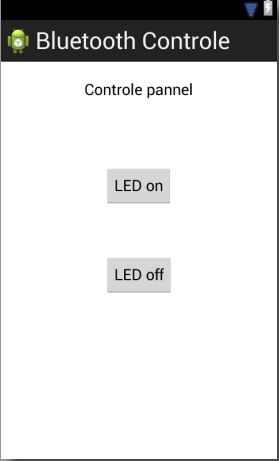
       I recently done a project with Arduino , on which i needed to communicate the Arduino with my Android phone via bluetooth interface, after referencing through the tutorials about the Bluetooth , i succeeded to implement the connectivity of  my phone and Arduino. So here am going to implement a simple example containing two buttons on the android to control the led connected in the led pin of Arduino.
   Here i used Arduino nano v3 micro-controller and HC-05 Bluetooth Module. The majority of the Arduino boards contain a LED connected to the pin 12.


Thursday, September 19, 2013

Create A Notification In Android

             Here am going to describe how a notification can make on the Android. A notification is a message you can display to the user outside of your application's normal UI. When you tell the system to issue a notification, it first appears as an icon in the notification area. To see the details of the notification, the user opens the notification drawer. Both the notification area and the notification drawer are system-controlled areas that the user can view at any time.

         For creating a notification, we need two android activities. One is the activity that is creating the Notification and second activity for managing the notification if the user selects the notification from the notification drawer .Every notification containing a unique id which represents the notification, here i used the notification id as 1.  
        
         Here am going to explain this by making a Android Application for displaying a simple Notification.
The name of the Application is "Notification".


Tuesday, August 6, 2013

Python Quick tutorial

Introduction

Well, we can make one-liner programs. So What? You want to send programs to other people, so that they can use them, without knowing how to write them.

Editing in Notepad

Writing programs in python to a file is VERY easy. Python programs are simply text documents - you can open them up in notepad, and have a look at them, just like that. So, go and open notepad. Type the following:


<pre name="code" class="python">
#A simple program.
print "Mary had a little lamb,"
print "it's fleece was white as snow;"
print "and everywhere that Mary went",
print "her lamb was sure to go."
</pre>

Using the IDLE Environment

    echo "I like PHP";


Now, open up the Python IDLE program (should be in your start menu). Click 'File > Open' and find mary.py and open it. if you cant find mary.py, set the open dialogue to 'Files of type: All Files (*)'. A new window will open, showing the program you just wrote. To run your program, click 'Run>Run Module' (or just press F5). Your program will now run in the main Python screen (Titled *Python Shell*) and will look like this: