Wednesday, March 26, 2014

Android SQLite

      This section,describes how to use the SQLite database in Android applications. SQLite is an Open Source database. SQLite supports standard relational database features like SQL syntax, transactions and prepared statements. The database requires limited memory at runtime (approx. 250 KByte) which makes it a good candidate from being embedded into other runtimes.
       SQLite supports the data types TEXT (similar to String in Java), INTEGER (similar to long in Java) and REAL (similar to double in Java). All other types must be converted into one of these fields before getting saved in the database. SQLite itself does not validate if the types written to the columns are actually of the defined type, e.g. you can write an integer into a string column and vice versa.

More information about SQLite can be found on the SQLite website: http://www.sqlite.org.

SQLite in Android

       SQLite is embedded into every Android device. Using an SQLite database in Android does not require a setup procedure or administration of the database.


You only have to define the SQL statements for creating and updating the database. Afterwards the database is automatically managed for you by the Android platform.

Access to an SQLite database involves accessing the file system. This can be slow. Therefore it is recommended to perform database operations asynchronously.

If your application creates a database, this database is by default saved in the directoryDATA/data/APP_NAME/databases/FILENAME.

Saturday, September 28, 2013

Connect Arduino With Bluetooth Module To Android Device


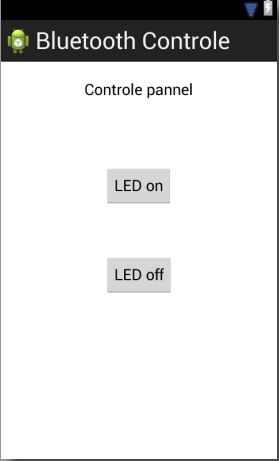
       I recently done a project with Arduino , on which i needed to communicate the Arduino with my Android phone via bluetooth interface, after referencing through the tutorials about the Bluetooth , i succeeded to implement the connectivity of  my phone and Arduino. So here am going to implement a simple example containing two buttons on the android to control the led connected in the led pin of Arduino.
   Here i used Arduino nano v3 micro-controller and HC-05 Bluetooth Module. The majority of the Arduino boards contain a LED connected to the pin 12.


Thursday, September 19, 2013

Create A Notification In Android

             Here am going to describe how a notification can make on the Android. A notification is a message you can display to the user outside of your application's normal UI. When you tell the system to issue a notification, it first appears as an icon in the notification area. To see the details of the notification, the user opens the notification drawer. Both the notification area and the notification drawer are system-controlled areas that the user can view at any time.

         For creating a notification, we need two android activities. One is the activity that is creating the Notification and second activity for managing the notification if the user selects the notification from the notification drawer .Every notification containing a unique id which represents the notification, here i used the notification id as 1.  
        
         Here am going to explain this by making a Android Application for displaying a simple Notification.
The name of the Application is "Notification".


Tuesday, August 6, 2013

Python Quick tutorial

Introduction

Well, we can make one-liner programs. So What? You want to send programs to other people, so that they can use them, without knowing how to write them.

Editing in Notepad

Writing programs in python to a file is VERY easy. Python programs are simply text documents - you can open them up in notepad, and have a look at them, just like that. So, go and open notepad. Type the following:


<pre name="code" class="python">
#A simple program.
print "Mary had a little lamb,"
print "it's fleece was white as snow;"
print "and everywhere that Mary went",
print "her lamb was sure to go."
</pre>

Using the IDLE Environment

    echo "I like PHP";


Now, open up the Python IDLE program (should be in your start menu). Click 'File > Open' and find mary.py and open it. if you cant find mary.py, set the open dialogue to 'Files of type: All Files (*)'. A new window will open, showing the program you just wrote. To run your program, click 'Run>Run Module' (or just press F5). Your program will now run in the main Python screen (Titled *Python Shell*) and will look like this: